
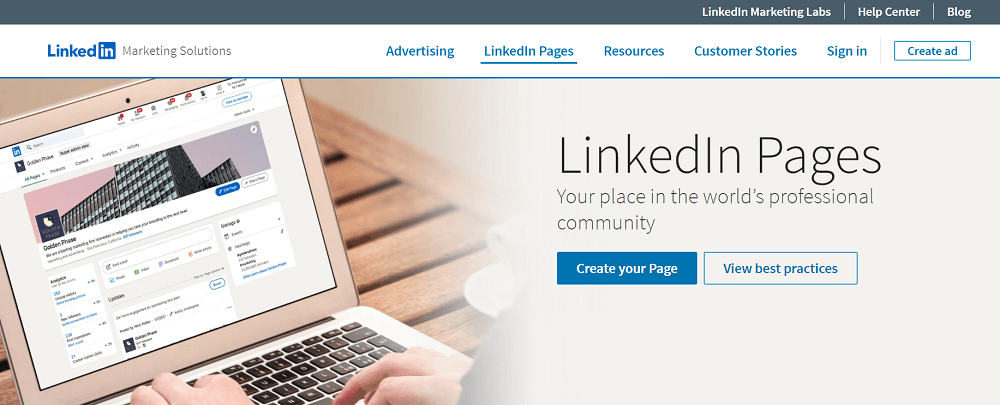
Your LinkedIn Business Page (called a Company Page) is your professional hub on the world’s largest B2B network. It builds credibility, showcases your brand to decision-makers, and helps you recruit top talent—all while boosting visibility in LinkedIn search and feeds. Best of all? It’s free, easy to set up, and integrates seamlessly with your personal profile.
Whether you’re a solopreneur, agency, or startup, here’s how to build a LinkedIn Business Page that drives real business results.
1. Create Your Page from a Personal Profile
You must have a personal LinkedIn profile (with your real name) to create a Company Page.
Go to linkedin.com/company → Click “Create a Company Page” → Select “Small business” (for most entrepreneurs).
✅ Tip: Use your business email (e.g., you@yourbusiness.com ) during setup—not a personal Gmail—to maintain ownership.
2. Add Essential Branding & Details
Fill out every section—LinkedIn rewards complete profiles with better visibility:
- Page identity:
- Company name: Use your official legal name
- Website: Your business URL (required)
- Industry: Choose the most accurate category (e.g., “Marketing and Advertising”)
- Company size: Be honest (1–10, 11–50, etc.)
- Logo: 300×300 px (appears in search and posts)
- Cover image: 1128×191 px—show your team, product, or mission (e.g., “Helping SaaS companies scale with AI”)

3. Write a Compelling “About” Section
This is your elevator pitch to prospects, partners, and job seekers. Include:
- Who you serve
- What problem you solve
- Your unique approach or differentiator
- A clear call-to-action (CTA)
Keep it concise (under 2,000 characters) and keyword-rich for search:
“We help e-commerce brands reduce cart abandonment by 30% with AI-powered email flows. Trusted by 200+ Shopify stores. Book a free audit → [link]”
4. Add Showcase Pages (Optional but Powerful)
If you offer multiple products or services, create Showcase Pages under your main Company Page:
- Example: Main page = “GreenScape Landscaping”
- Showcase Page 1: “Commercial Lawn Care”
- Showcase Page 2: “Residential Garden Design”
This lets followers opt into specific content—and improves targeting for ads.
5. Publish Your First Post & Pin It
Your first post should welcome visitors and highlight your value:
“We’re [Business Name]! We help [ideal customer] achieve [result]. Follow us for weekly tips on [topic].”
Then pin it to the top of your page so it’s always visible.
6. Invite Your Network & Assign Admins
- Invite connections to follow your page (click “Admin tools” → “Invite followers”)
- Add team members as admins (Settings → “Page admins”) so they can post and respond to messages
💡 Pro Tip: Encourage employees to add your Company Page to their personal profiles under “Experience”—this boosts reach.
7. Post Consistently & Engage
Share content that builds trust and authority:
- Industry insights or trends
- Case studies or client wins (with permission)
- Team spotlights or behind-the-scenes
- Job openings (if hiring)
Aim for 1–2 posts per week. Always respond to comments—LinkedIn’s algorithm favors engagement.

FAQs
Q: Can I create a LinkedIn Business Page without a personal profile?
A: No. LinkedIn requires a verified personal profile to create and manage a Company Page—but your personal activity stays separate from the business page.
Q: Is a LinkedIn Company Page free?
A: Yes! Creating and managing a basic Company Page is 100% free. You only pay if you run LinkedIn Ads or use premium recruiting tools.
Q: How do I get more followers?
A:
- Add a “Follow” button to your email signature and website
- Share your page link in newsletters and social bios
- Post valuable, non-salesy content consistently
- Tag clients or partners (with permission) in relevant posts