

Wix powers over 600 million websites—and for good reason. Its intuitive drag-and-drop editor, professional templates, and built-in business tools make it ideal for entrepreneurs, freelancers, and small businesses. Whether you’re selling products, booking clients, or showcasing your portfolio, you can build a polished, mobile-optimized website without touching a line of code. Here’s how (read time: 3–4 minutes).
1. Sign Up and Choose the Right Plan
Start at wix.com and click Get Started.
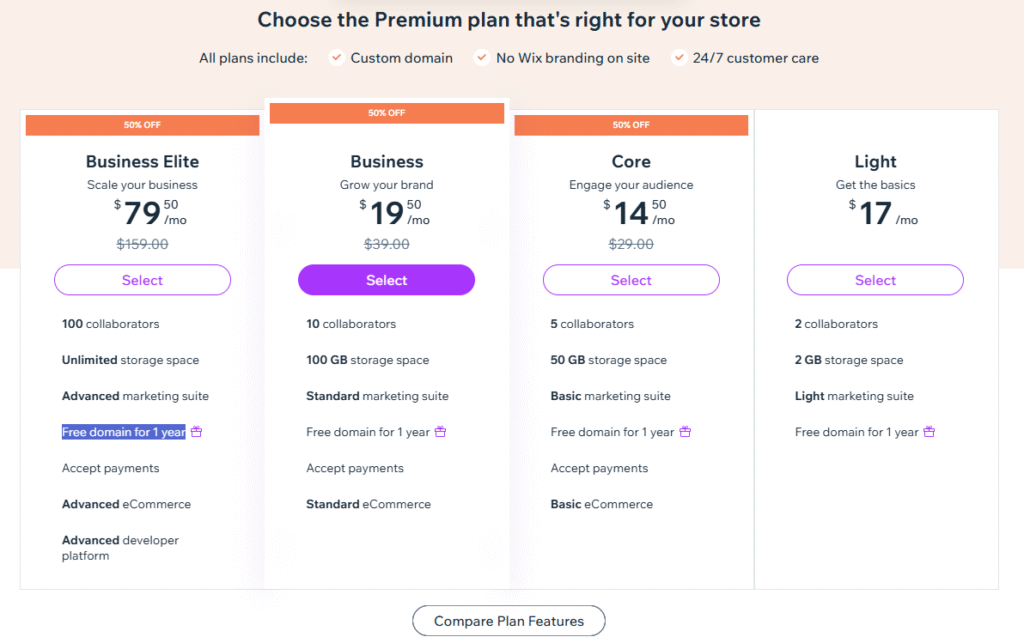
- Use a free account to build and preview your site (with Wix-branded subdomain like
yourname.wixsite.com/yoursite) - Upgrade later (~$16–$35/month) to connect a custom domain, remove Wix ads, and unlock business features
💡 Tip: You can build your entire site on the free plan—just upgrade before going live.
2. Pick a Template Designed for Your Business Type
Wix offers 900+ industry-specific templates. Choose one that matches your goals:
- Service-based (consulting, coaching): Look for “Book Online” or “Contact” focus
- E-commerce: Choose “Online Store” templates with product galleries
- Portfolio: Clean layouts with image/video showcases
Click Edit to start customizing. You can change anything—colors, fonts, layout—later.
3. Customize Your Site with the Drag-and-Drop Editor
Wix’s editor is visual and intuitive:
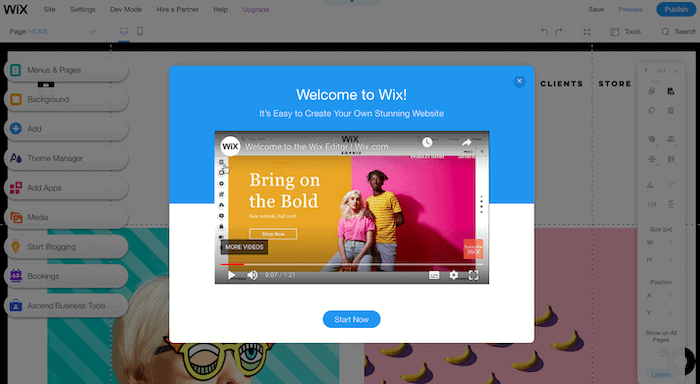
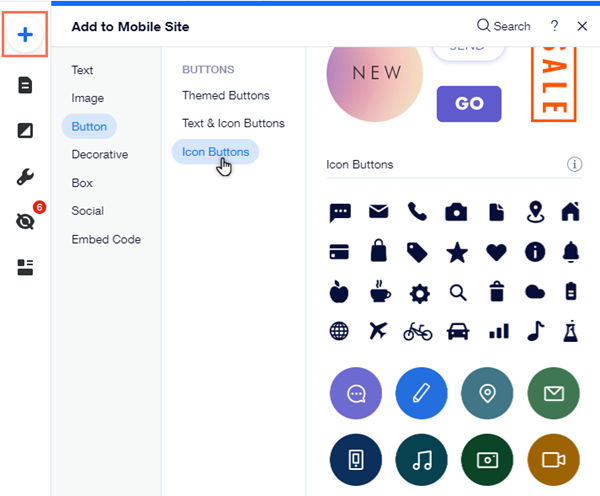
- Add elements: Click the “+” button to insert text, images, buttons, forms, or apps
- Edit text: Click any text box and type
- Upload media: Use high-quality images from your computer or Wix’s free stock library
- Adjust layout: Drag sections up/down; resize elements with your mouse
💡 Pro tip: Use Wix Studio (newer editor) for more design control, or stick with Classic Editor if you prefer simplicity.
4. Add Essential Business Pages
Every business site needs these core pages:
- Homepage: Clear headline, value proposition, strong CTA (“Book Now,” “Shop,” “Contact”)
- About: Your story, mission, and why clients should trust you
- Services/Products: Detailed offerings with pricing (if applicable)
- Contact: Email, phone, and a contact form (use Wix Forms—free and spam-protected)
- Testimonials: Social proof builds instant credibility
Use Wix’s AI Site Booster to auto-generate content if you’re stuck.

5. Optimize for Mobile, SEO, and Going Live
- Mobile preview: Click the mobile icon to adjust how your site looks on phones (Wix auto-optimizes, but fine-tune spacing)
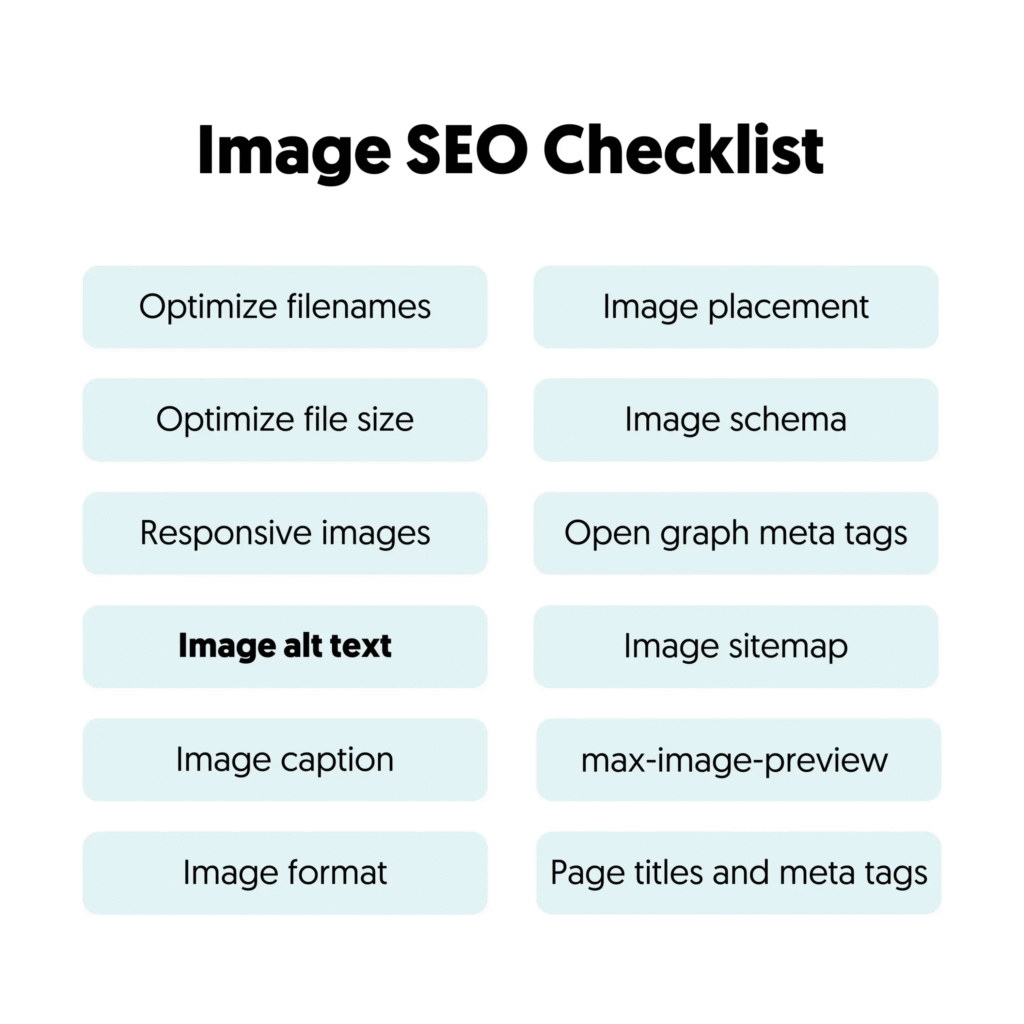
- SEO basics: In your dashboard, go to Marketing & SEO → SEO Settings. Add a page title, meta description, and keywords
- Connect a domain: Upgrade your plan, then connect a custom domain (e.g.,
yourbusiness.com) via Wix or a third party like GoDaddy - Publish: Click Publish in the top bar—your site goes live instantly
Final Tip
Your website doesn’t need to be perfect—it needs to be live. Launch fast, gather feedback, and improve over time. Wix makes updates effortless.
FAQs
Q: Can I sell products on Wix for free?
A: You can build your store on the free plan, but you’ll need to upgrade to a Wix eCommerce plan (~$27+/month) to accept payments and remove transaction fees.
Q: Is Wix good for SEO?
A: Yes! Wix has built-in SEO tools (custom URLs, meta tags, alt text) and scores well with Google. Just avoid overly complex animations that slow load time.
Q: Can I switch templates after building my site?
A: On the Classic Editor, no—you’d need to rebuild. On Wix Studio, you can apply new designs without losing content. Plan your template choice carefully!