
Your Google Business Profile (formerly Google My Business) is your #1 local marketing tool. When someone searches “coffee shop near me” or “plumber in [your city],” your listing appears in the local 3-pack—the top 3 results on Google Maps and Search. And the best part? It’s 100% free, easy to set up, and works even if you don’t have a website.
Whether you run a storefront, service area business, or home-based operation, here’s how to build a Google Business page that drives calls, clicks, and customers.
1. Claim or Create Your Business Profile
Go to google.com/business and click “Manage Now.”
- If your business already exists in Google’s database, claim it
- If not, click “Add your business to Google”
Sign in with your business Gmail account (create one if needed—e.g., n@yourbusiness.com).
✅ Tip: Use a dedicated business email—not your personal one—to maintain ownership if you change team members.
2. Enter Accurate Business Information
Fill in every field truthfully—Google verifies this:
- Business name: Use your real, registered business name (no keyword stuffing like “Best Pizza #1”)
- Category: Choose the most specific primary category (e.g., “Italian Restaurant,” not just “Restaurant”)
- Location:
- Storefront? Add your full address
- Service-area business? (e.g., plumber, consultant) → Check “I deliver goods and services to my customers” and list your service cities
- Contact info: Phone number and business website (or link to your Instagram/Facebook if no website)

3. Verify Your Business (Required)
Google must confirm you own the business. Options:
- Mail postcard: Most common—arrives in 5–14 days with a verification code
- Phone or email: Available for some eligible businesses
- Video verification: Record a short video of your business interior/exterior (new option for select users)
⏳ Don’t skip this—your listing won’t appear in search until verified.
4. Optimize Your Profile for Maximum Impact
Once verified, complete every section:
- Add high-quality photos:
- Logo (400×400 px)
- Cover photo (1080×608 px)
- Interior, exterior, team, and product shots (Google prioritizes listings with 10+ photos)
- Write a compelling business description (750 characters max):“Family-owned bakery in Austin since 2015. We specialize in vegan croissants, custom cakes, and same-day orders. Open 7am–3pm daily.”
- Set accurate hours (including special hours for holidays)
- Enable messaging: Let customers text you directly from your listing
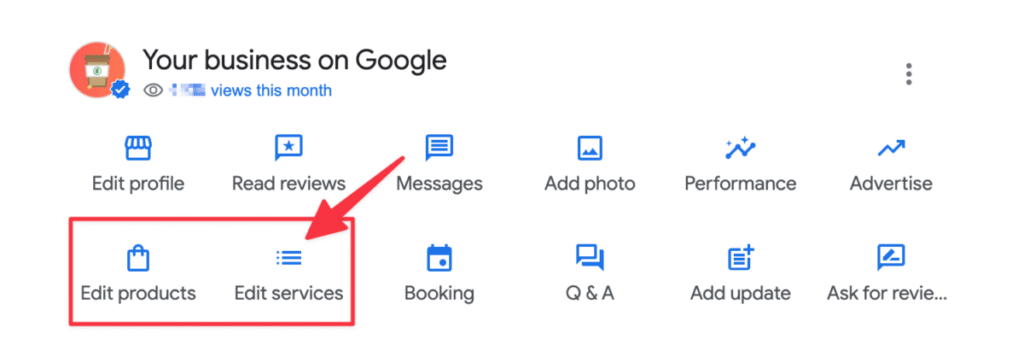
- Add products/services: Showcase offerings with photos and prices
5. Encourage & Respond to Reviews
Reviews boost visibility and trust:
- Politely ask happy customers to leave a review (text/email a direct link)
- Respond to every review—thank positive ones, address concerns professionally in negative ones
- Never offer incentives for reviews (against Google’s policy)
💡 Listings with 10+ reviews rank higher and convert better.
6. Post Regularly & Monitor Insights
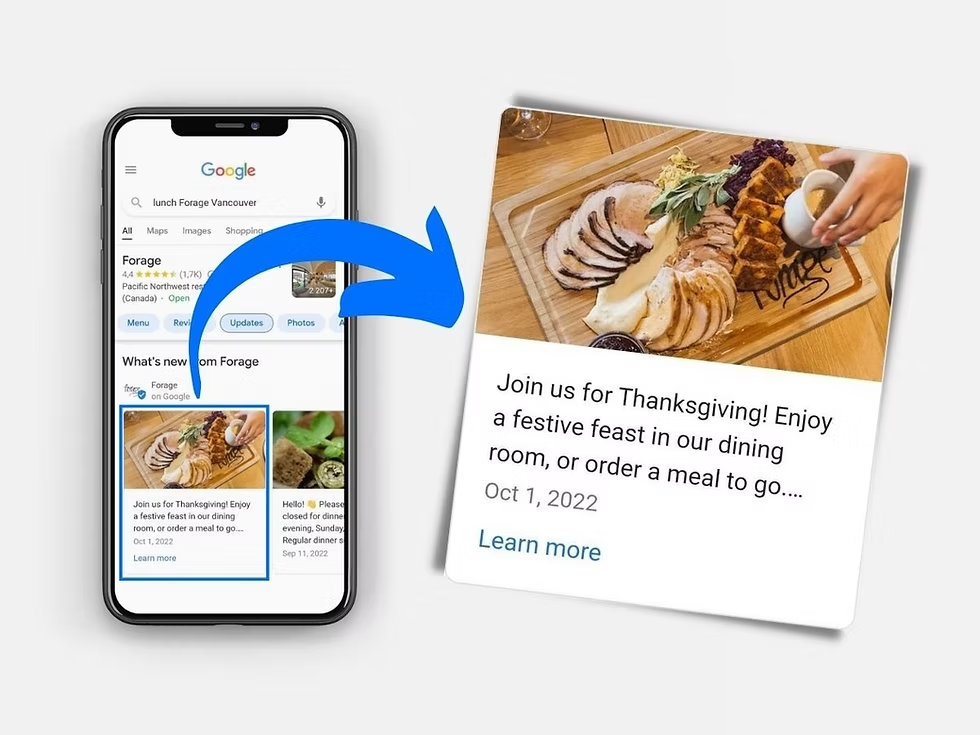
Use the “Updates” tab to share:
- Promotions (“20% off this weekend!”)
- Events (“Grand opening Saturday!”)
- New products or services
Check Insights monthly to see:
- How many people found you via Search vs. Maps
- What actions they took (calls, website visits, direction requests)
- Popular search terms (“bakery near me,” “vegan cake Austin”)
FAQs
Q: Can I create a Google Business Profile without a physical address?
A: Yes! Service-area businesses (like cleaners, tutors, or consultants) can hide their address and list only the cities they serve.
Q: How long does verification take?
A: Mail verification takes 5–14 days. Phone/email verification is instant if available. Video verification takes 1–3 days.
Q: Do I need a website to have a Google Business Profile?
A: No! You can link to your Instagram, Facebook, or even a free Google Site. But having a simple website improves credibility and conversions.